HeadsUpAI

OpenAI Brings Computer Use to Windows for Autonomous Codex Workflows

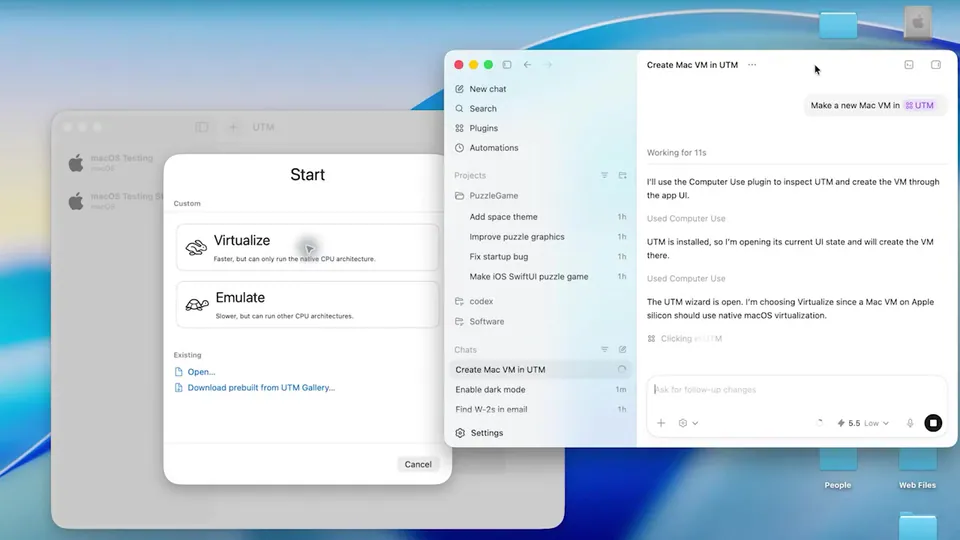
OpenAI launched Computer Use for Windows within its Codex desktop app, enabling agents to interact with graphical interfaces by viewing screens and clicking buttons. This update expands on OpenAI's Codex app for Windows and the Codex Computer Use for Mac launch, introducing a native Windows sandbox to protect system integrity.
Availability
Windows (excluding EEA, UK, Switzerland)
Required permissions
Screen Recording and Accessibility
Sandbox support
PowerShell (Native) and WSL2
Remote control
ChatGPT mobile app
Security feature
Locked use mode

Bringing computer use to Windows bridges a gap for enterprise teams where Windows is the primary OS. By operating desktop apps, Codex can now handle end-to-end workflows like UI testing that were previously manual. This expansion continues OpenAI's shift toward autonomous engineering agents to manage the software lifecycle.

You can now initiate multi-app tasks on Windows and steer them via the OpenAI Codex mobile preview to monitor progress or approve actions from a phone. The feature is available globally except in the EEA, UK, and Switzerland. A "locked use" mode allows Codex to work after the screen locks.

OpenAI
OpenAI
@OpenAI
X

Windows users, this one’s for you. Computer use now works on Windows, so Codex can take action on your Windows computer. And with Windows support for Codex in the ChatGPT mobile app, you can start, review, and steer tasks on the go while work continues on your Windows machine. An early experience, but we’re working on more ways to keep your work moving, wherever you are.

777retweets7.4klikes
View on X

Still wondering? A few quick answers below.

Computer use is a capability that allows the Codex agent to see and operate the Windows graphical user interface. Instead of just writing code, the agent can click buttons, type text, and navigate between different desktop applications to perform tasks like UI testing, reproducing bugs, or changing system settings.

To enable the feature, you must install the Computer Use plugin within the Codex app settings. Because the agent needs to see and interact with your screen, you must grant Screen Recording and Accessibility permissions when prompted. You can also choose to always allow specific apps for future automated tasks.

Yes, you can start, review, and steer tasks on your Windows machine using the ChatGPT mobile app. This remote connection allows you to monitor autonomous agent workflows on the go, providing approvals for sensitive actions or checking progress while the work continues to run on your host computer.

At launch, the computer use feature in the Codex app is not available in the European Economic Area, the United Kingdom, or Switzerland. For users in supported regions, the app can be downloaded through the Microsoft Store or installed via the command line using the winget package manager.

The app natively uses PowerShell, but it also supports Windows Subsystem for Linux 2. You can configure the agent to run in a WSL2 environment, allowing it to use Linux-based sandboxing and tools while still accessing projects stored on your Windows or Linux file systems.

Share this update