HeadsUpAI

OpenAI Launches Codex Remote Connections to Steer Coding Agents From Mobile

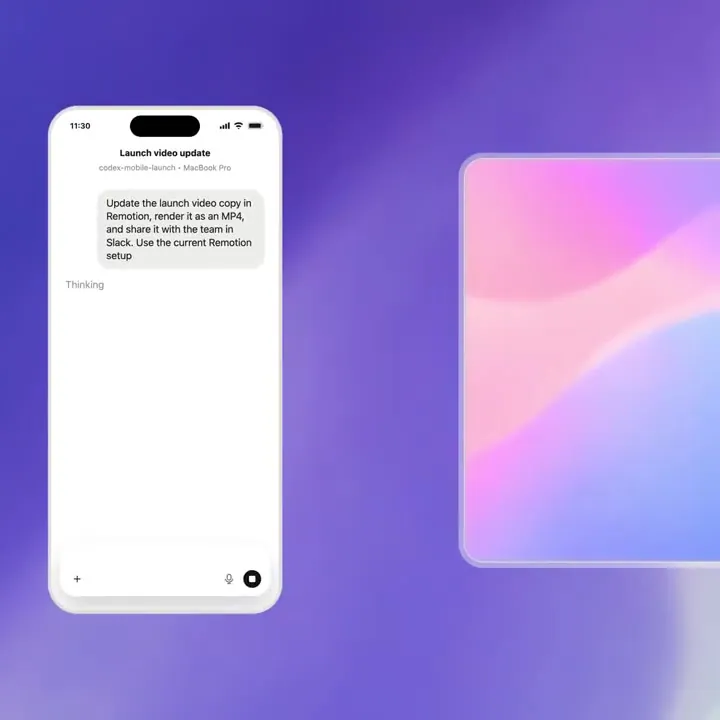
OpenAI launched Remote Connections for its Codex desktop app, enabling users to control the agentic coding platform from the ChatGPT mobile app, following the Codex mobile preview. The feature allows you to start new threads, answer agent questions, and approve terminal commands or code diffs remotely while the work executes on a host Mac.
Mobile platforms
iOS and Android
Host requirement
Mac running Codex App
Remote host support
SSH and managed devboxes
Remote capabilities
Command approval, diff review, and task steering
Connectivity
Secure relay via ChatGPT account

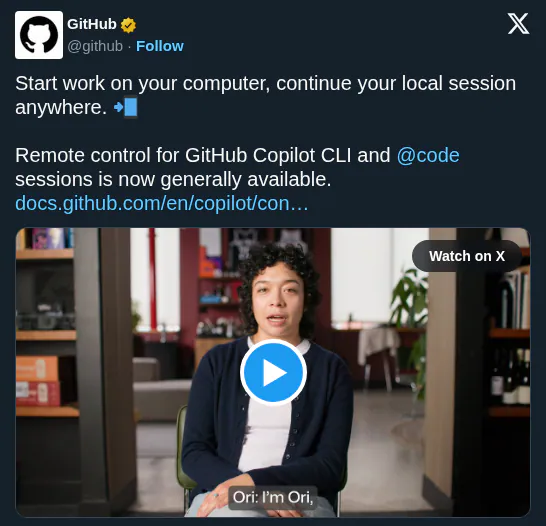
This update addresses the friction of agentic loops that require human oversight for high-stakes actions. By moving these approvals to mobile, OpenAI mirrors GitHub's Copilot CLI remote control and a pattern seen in Claude Code's mobile steering, signaling an industry shift toward persistent, background AI labor that doesn't tether developers to their workstations.

You can now enable remote access in the Codex app settings and scan a QR code to link your mobile device. The system supports Codex App's remote environment support for projects on SSH devboxes and includes a Keep this Mac awake toggle to prevent background tasks from sleeping. Remote control is available for all users with Codex access.

OpenAI Developers
OpenAI Developers
@OpenAIDevs
X

Your Mac can hold down the fort while you work from your phone. Enable remote connection in the Codex desktop app, then turn on “Keep this Mac awake.” When your Mac is powered on and plugged in, Codex can keep running there while you work from the ChatGPT mobile app. https://t.co/e6bawtdAbi

130retweets2klikes
View on X

Still wondering? A few quick answers below.

Remote Connections is a feature for the Codex desktop app that allows you to control and monitor autonomous coding tasks from another device. By linking the ChatGPT mobile app to a host Mac, you can start new threads, answer agent questions, and approve terminal commands or code changes while away from your primary workstation.

To set up mobile access, open the Codex app on your Mac and select the mobile setup option in the sidebar to generate a QR code. Scan this code with your phone to open the ChatGPT app, then confirm your account and workspace. Once connected, your Mac host will appear in the mobile app for remote control.

Yes, you can configure the Codex desktop app to connect to remote development environments or devboxes via SSH. Once the desktop app is connected to the SSH host, you can use your phone to steer Codex as it executes commands and manages files directly on that remote server, provided the host Mac remains online.

You need the latest ChatGPT mobile app on iOS or Android and the Codex desktop app running on a Mac host. Both devices must be signed into the same account and workspace. For persistent access, the host Mac must remain powered on, plugged in, and have the Keep this Mac awake setting enabled in connection settings.

The mobile app allows you to monitor active agent loops and perform critical steering tasks. You can approve or reject shell commands, review code diffs and test results, and view screenshots of the host's desktop. You will also receive mobile notifications when Codex completes a task or requires your intervention to proceed with an action.

Share this update